
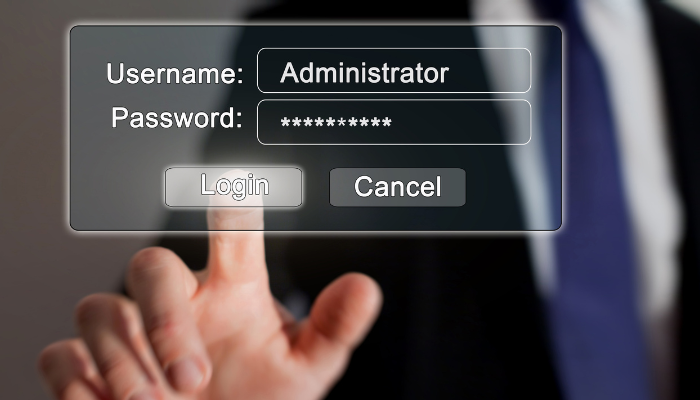
Granting Administrator access often starts with a single request. An employee simply needs to install a printer, update a specialist program, or change a setting on their computer.
Admin access solves the immediate problem, but it often remains in place long after the task is finished.
From then on, the employee can approve other software installations and make numerous changes that would usually require input from your IT bods. Problems mount if they install an unsafe program which could give bad actors access or control of their account, even using those permissions to change who gets access.
What administrator access allows someone to do
An administrator has more control over a computer than a standard user.
On Windows, members of the local Administrators group have full control over the resources on the device. According to Microsoft’s guidance on local accounts, Microsoft recommends limiting the number of users in that group.
Depending on the computer and how it is managed, an administrator may be able to:
- Install and remove software
- Add drivers for printers and other equipment
- Create, change, or remove user accounts
- Change system settings
- Change permissions on files and folders
- Install services that continue running in the background
- Make changes to some security settings
Mac computers also have standard and administrator accounts. Apple says administrators can install and remove software, manage other users, and change settings. Apple recommends limiting the number of administrative users and using a standard account when administrator rights aren’t required.
An employee may have local administrator access to a laptop without being a Microsoft 365 administrator. Local administrator access applies to the computer itself. It’s different from Microsoft 365, Google Workspace, network, or server administrator access. Those accounts may control email, cloud files, user accounts, or several systems at once and should be reviewed separately, as they need to be even more highly controlled.
Why permanent administrator access increases your risk
If software asks for administrator approval and the employee approves it, the program may be able to install system components, change settings, or affect information belonging to other users.
That matters when someone downloads a fake installer, opens a harmful attachment, or installs software from an untrusted website. The employee may think they are approving a legitimate update while giving the program permission to change the computer.
Windows uses User Account Control to ask for approval before many administrative changes. An employee signed in with an administrator account can approve the request themselves without the knowledge and checks your IT team would apply to the request.
What to use instead
Microsoft describes the standard account as the recommended and more secure way to use Windows. A standard user is usually prompted for administrator credentials and will need to consult with your IT team before making any significant changes
Standard accounts also reduce the number of people who can change security settings without review. Employees can’t approve every installation themselves, so IT has a chance to check the program, where it came from, and what permissions it needs.
The UK National Cyber Security Centre recommends using Privileged Access Management (PAM), as an additional security measure. The USA’s CISA advises businesses to control local administrator access and restrict who can install software. The Australian Cyber Security Centre includes restricting administrative privileges in its Essential Eight security measures and recommends creating separate accounts for administrative work.
Standard accounts are suitable for everyday work
A standard account can still be used for normal business tasks, including:
- Reading and sending email
- Using a web browser
- Working in Microsoft 365 or Google Workspace
- Accessing approved business applications
- Joining online meetings
- Printing with an installed printer
- Opening and saving files
- Changing personal settings that do not affect other users
Some applications can be installed for one user without admin access. Others need administrator approval if they add drivers, services, or files in protected parts of the computer.
An employee should never receive permanent admin access because one program needs an update. IT can approve the installation, deploy the update remotely, or use a separate administrator account for that task.
Some older business applications might occasionally expect the user to have administrator rights. Test those applications before changing account permissions. In many cases, IT can update the application, adjust its configuration, or grant access to the specific folders it needs whilst still keeping tabs on the security.
How staff should manage software installations
Staff can still get software installed and updated without keeping administrator rights.
Let IT install approved software
Your IT team or provider can install the program remotely. This also gives them a chance to confirm that the installer came from the software company and that the requested version is supported.
Use managed software deployment
Businesses with managed computers can send approved applications and updates to employees without asking each person to run an installer. The available method will depend on the operating system and device management service.
Approve individual requests
An employee can contact IT when an installation requires administrator approval. IT can review the request and enter the required credentials without giving the password to the employee.
Provide time-limited administrator access
Some roles need to install or test software as part of their work. Give those employees a separate administrator account that is enabled only for the approved task, then disable it afterwards.
Create a separate administrator account
Employees who regularly perform approved technical work can have a separate administrator account. They should continue using their standard account for email, browsing, and normal work.
The administrator account should only be used when a task requires the extra permissions.
Who should have administrator access?
Administrator access should be limited to people whose work truly requires it.
That may include:
- Your internal IT staff
- Your IT provider
- An approved technical employee
- A software specialist responsible for a particular system
Business owners should use standard accounts for their day-to-day work too. Ownership of the company doesn’t require permanent admin access to every computer.
Your IT provider should keep a managed administrator account so they can support each device. The password is protected and shouldn’t be shared with employees.
Using the same local administrator password on every computer creates another problem. If that password is stolen from one device, it may work on the others – so each computer should have a unique administrator password or use a management service that controls them.
How to remove administrator access safely
If some of what we’re saying is sounding familiar and you want to put it right – don’t just remove every admin account at once. Someone still needs a working way to manage and repair each device. Instead:
- Check which employees have administrator access
Review the local/Azure and Active Directory accounts Administrators group on every Windows computer and the administrator users on every Mac. Include old accounts, shared accounts, vendor accounts, and accounts created during the original setup.
- Confirm why each person has it
Ask what tasks require administrator access. A clear business need should exist for every account that keeps the permission.
Needing to update one application occasionally does not require permanent access.
- Make sure IT has a working administrator account
Confirm that your IT team or provider can sign in with a protected administrator account before removing permissions from employees.
Test the account on each device. This prevents the business from being locked out of its own computers.
- Test important software
Check the programs each employee needs for their job. Confirm that they open, update, and work correctly when the employee uses a standard account.
Any application that fails should be reviewed before administrator access is removed permanently.
- Change the employee’s account to a standard account
Once the computer has been checked, remove the employee from the local administrator group or change the account type.
The employee should then sign out and sign back in, so the new permissions apply correctly.
- Tell staff how to request an installation
Give employees one place to contact when they need software installed or a setting changed. Explain what information to include, such as the program name, the reason it is needed, and the official download page.
- Review access when roles change
Check administrator access when an employee changes jobs, receives new responsibilities, or leaves the business. Include it in your regular access reviews as well.
Sources and further reading
- Microsoft Learn: Local accounts
- Microsoft Learn: How User Account Control works
- Apple Support: Set up your Mac to be secure
- UK National Cyber Security Centre: Secure system administration
If you’re not sure who has administrator access or whether your employees need it, just ask your IT provider to review the accounts on your business computers.
And if you don’t have an IT provider, feel free to reach out to us and we’ll help you sort it out.
If you’d like some support
If you need further advice, more information, or could just do with a little help, get in touch.
You can reach us on 01223 903 800, [email protected], or book a time for a call online with our top techs at: https://calendly.com/hello-gsl/mtg-25min.
We’re here to help.
Article used with permission from The Technology Press.